
LoopJuice
Monitor Apple Home and HomeKit accessory batteries on iPhone and iPad. LoopJuice brings battery levels, history, widgets and low-battery warnings into one clear overview.
View appLoopPDF
Turn paper into clean PDFs with automatic edge detection, perspective correction and multiple pages per file. Save to iCloud Drive, organise in folders and share. Free, private and watermark-free.
Turn paper into clean PDFs. LoopPDF is a free document scanner for iPhone, iPad and Mac, with automatic edge detection, perspective correction and multiple pages in one file. No ads, subscriptions or watermarks.
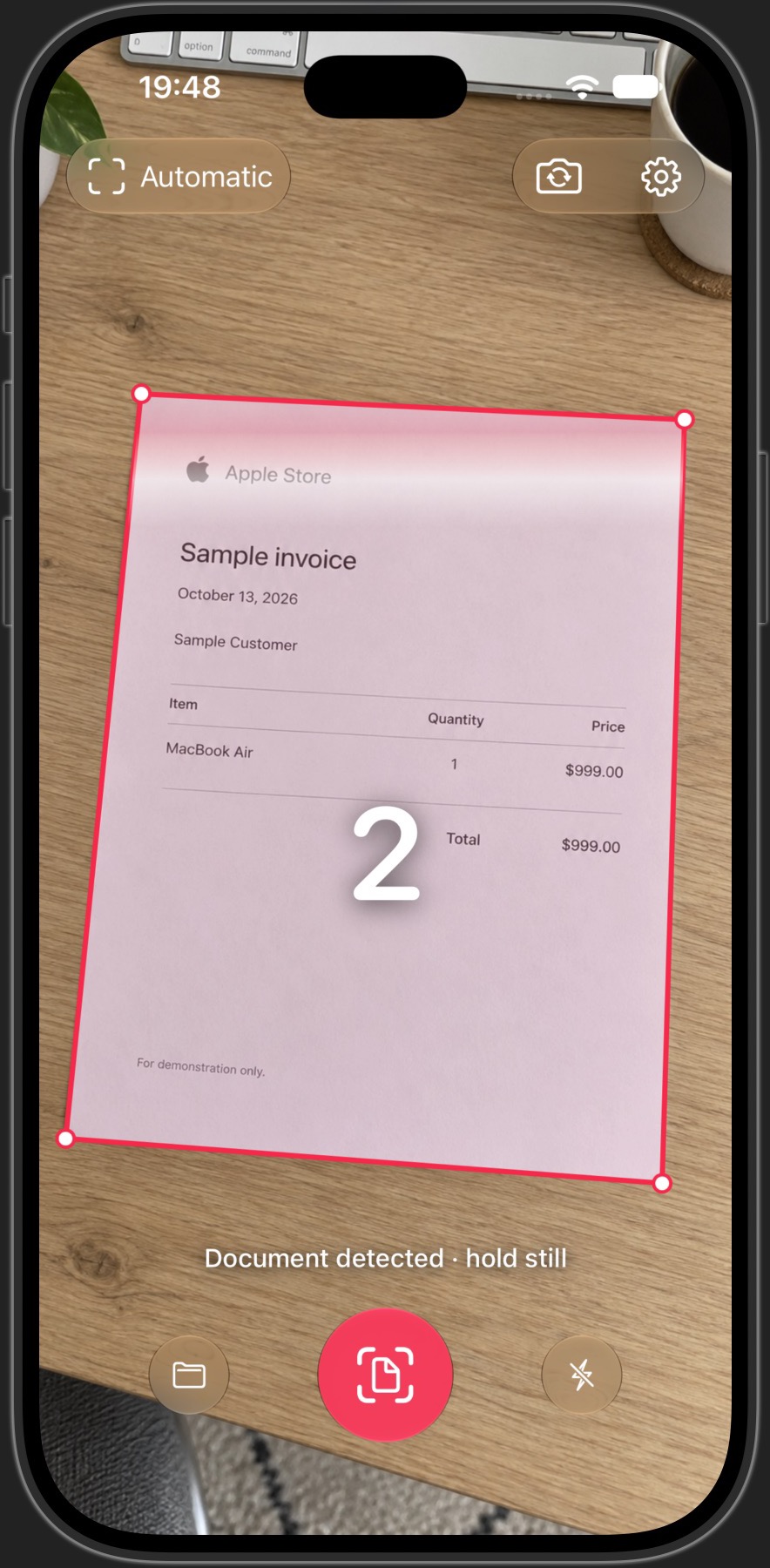
Open the camera, bring all four corners into view and hold the document steady. LoopPDF outlines the page and counts down before capturing it. Prefer to take control? Tap the scan button at any time. Adjust the automatic capture delay from 0.5 to 4 seconds.
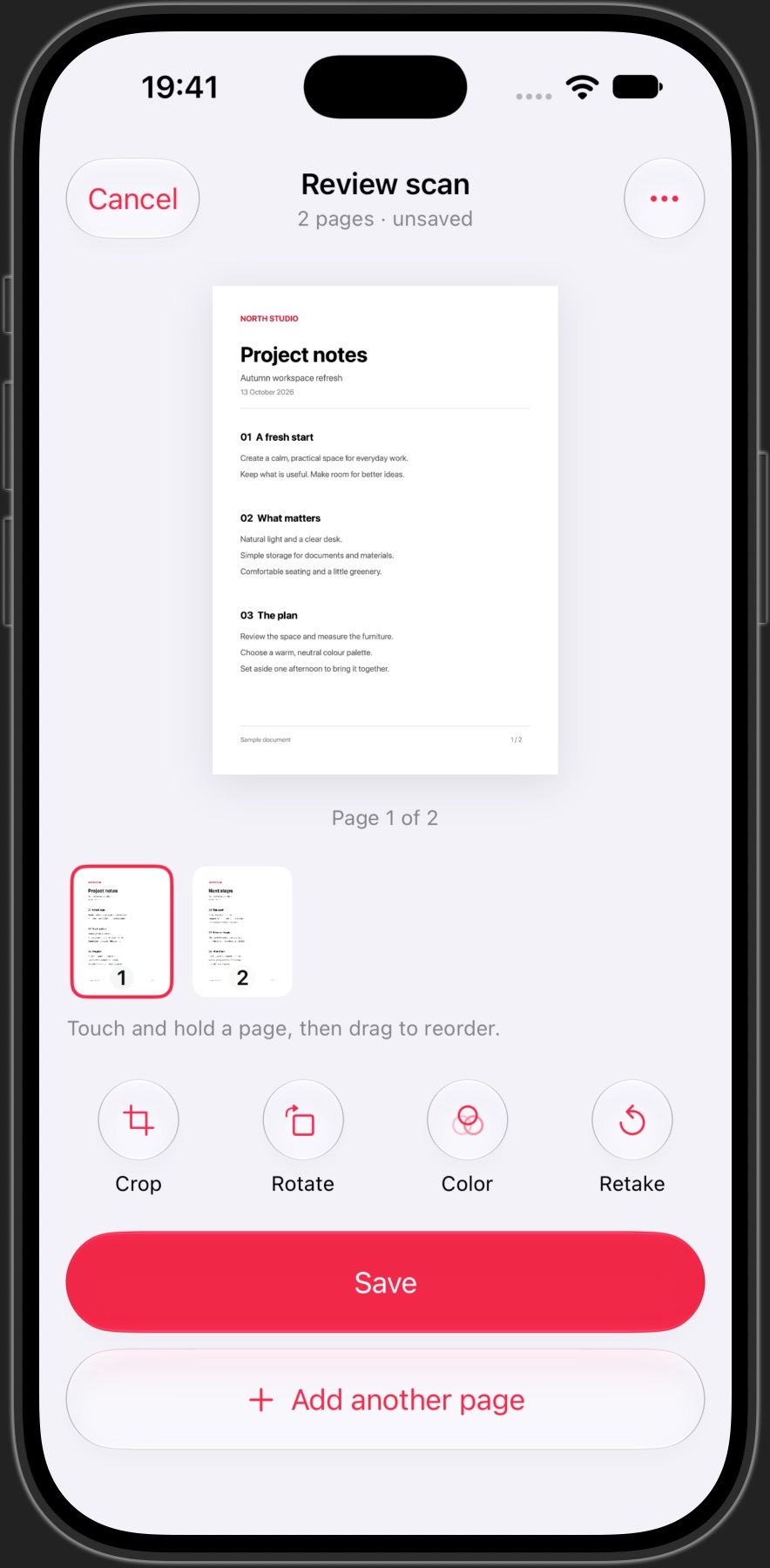
Add another page, review the result and drag the thumbnails into the right order. Crop, rotate or change the colour treatment before saving. You can also add pages to an existing PDF.
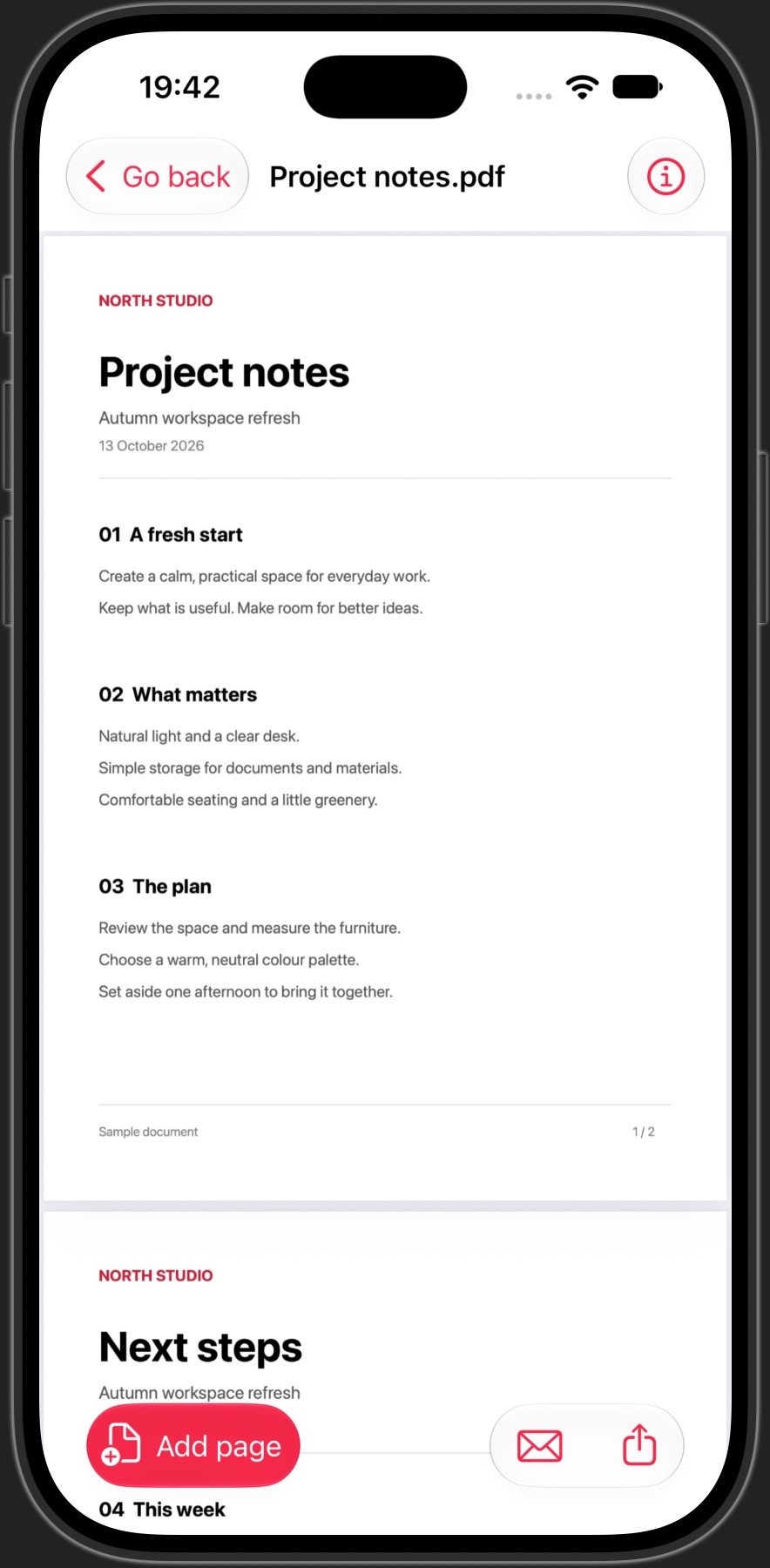
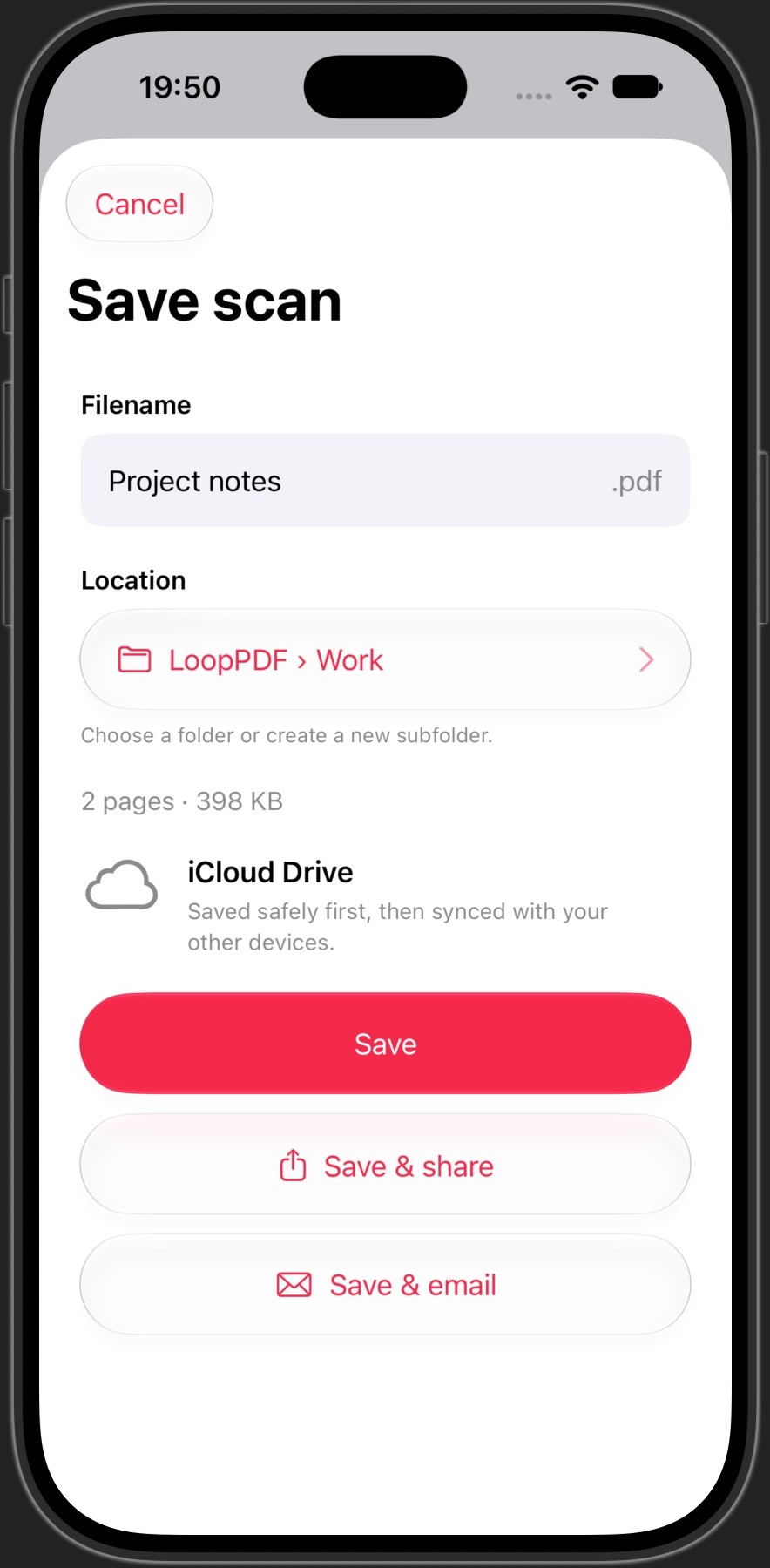
Give your scan a name and choose a folder inside LoopPDF. Browse folders, search by filename and open your PDFs in the built-in viewer. Page counts, file sizes, modification dates and sync icons help you keep track of your documents.
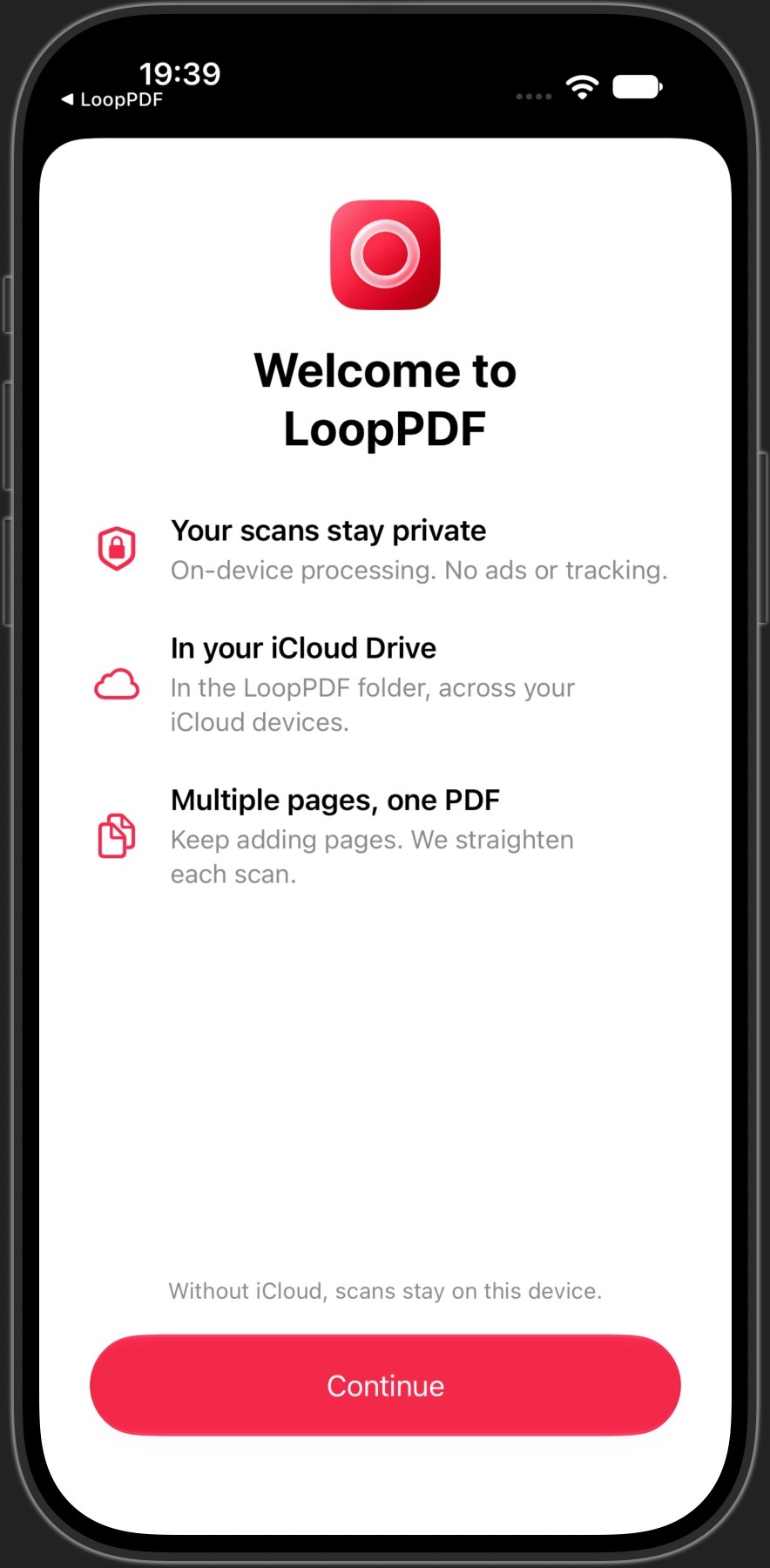
Save to your LoopPDF folder in iCloud Drive and continue on another device using the same Apple Account. If iCloud is unavailable, scans stay on the device and move to iCloud when it becomes available. Share a PDF through Mail, AirDrop or the system share sheet.
Document detection and image processing happen on your device. We do not receive your scans, run a document server or add logos or watermarks. There is no separate LoopPDF account, advertising or tracking.
Requires iOS 18, iPadOS 18 or macOS 15 or later. Camera access is needed for scanning. iCloud Drive and the same Apple Account are required for syncing across devices.
Need a hand? Visit LoopPDF support or read the privacy policy.
Questions, bug reports or ideas? Email looppdf@murani.nl.
Please include your LoopPDF version, device model, operating system version and a short description of what happened. If you send a screenshot or example document, remove personal or confidential information first. Never send passwords or Apple Account credentials.
Allow camera access, place the document against a contrasting background and keep all four corners in view. Hold still while the countdown completes, or tap the scan button to capture immediately. Review the page, then choose Save or Add another page.
Drag the page thumbnails into the order you want before saving. Use Crop to adjust the corners, Rotate to turn a page, and the colour menu to change its appearance. Retake a page if the text is blurred or obscured. Perspective correction can straighten a page photographed at an angle, but cannot restore detail lost to blur, glare or a folded page.
When iCloud Drive is available, PDFs are stored in the LoopPDF folder in iCloud Drive. You can find them in Files on iPhone or iPad and in Finder on Mac. Subfolders can be selected or created when you save.
iCloud Drive is currently unavailable to the app. Your scans remain saved locally. Sign in with the same Apple Account on your devices, enable iCloud Drive for LoopPDF and check that you have available iCloud storage and an internet connection. Open LoopPDF Settings and choose Check iCloud for feedback. Local scans move to iCloud when it becomes available. Sync icons next to your documents show their status.
See Apple’s iCloud Drive setup guide for device-specific instructions.
Use Save & share or Save & email when saving. You can also open a saved PDF and use its share, email or Add pages actions. Available sharing options depend on the apps and services configured on your device.
Open the PDF, tap its information button and choose Delete PDF, or use the document’s delete action in My scans. Deleting a PDF stored in iCloud also removes it from your other synced devices. Keep a separate copy of anything you need before deleting it.
Yes. LoopPDF has no subscription, ads or watermarks. Your scans contain no LoopPDF logo or other added branding. Apple’s iCloud storage limits and any charges for extra iCloud storage are separate.
Last updated: 13 October 2026
This policy explains how the LoopPDF app handles information. LoopPDF is published by Murani Consultancy BV. For privacy questions, email looppdf@murani.nl.
With your permission, LoopPDF uses the camera to capture documents. Edge detection, perspective correction, image adjustments and PDF creation take place on your device. Camera images and scans are not sent to a Murani-operated server. You can revoke camera access in your device’s system settings.
LoopPDF stores scanned page images and editing information for an unfinished scan so you can continue later. Saved PDFs include the document content and the filename and folder you choose. The app reads file information such as page counts, sizes, dates and sync status to display your library. It also stores preferences such as capture delay, PDF quality, sorting and your last save location.
Unfinished scans remain until you save or discard them. Temporary copies may be created when preparing a PDF or sharing it. LoopPDF does not add watermarks, logos or other app branding to your scans.
When available, LoopPDF uses Apple’s iCloud Drive to store your PDFs and folders and make them available on your other devices using the same Apple Account. If iCloud is unavailable, scans are kept locally and moved to iCloud when it becomes available.
Apple processes iCloud data according to your account settings and its own privacy terms. Device backups may also contain app data, depending on your settings. Murani does not operate the cloud storage service and cannot access your iCloud documents. See Apple’s privacy information.
Documents are shared when you choose a sharing action, such as Mail, AirDrop or another app in the system share sheet. The selected app or service and the recipient receive the file you choose to share. Their handling of that file is governed by their own policies. Sharing a scan does not send a copy to Murani.
LoopPDF has no advertising, tracking or third-party analytics and does not require a separate LoopPDF account. We do not collect your scans or automatically receive app usage data. Apple may provide platform diagnostics or TestFlight feedback according to your settings and Apple’s policies. The Murani website is separate from the app; this policy describes LoopPDF.
Saved PDFs remain until you delete them. Deleting an iCloud PDF in LoopPDF also deletes it from your other synced devices. Discarding an unfinished scan removes its draft data. Removing the app does not delete PDFs already stored in iCloud Drive or copies you have shared or exported. Backups and Apple services have their own retention and recovery controls.
We cannot remotely retrieve or erase documents stored only on your device or in your iCloud account.
If you email us, we receive your email address, message and any attachments you choose to provide. We use them to respond to your request and investigate reported issues, based on our legitimate interest in providing support. Support correspondence is retained for three months.
Contact looppdf@murani.nl to request access to, correction of or deletion of information you have provided to support. Where applicable, you may also request restriction or portability, object to processing, or complain to your local data protection authority. See the European Data Protection Board’s guide to your rights.
We may update this policy when LoopPDF’s functionality or data practices change. The latest version will be available on this page.
Monitor Apple Home and HomeKit accessory batteries on iPhone and iPad. LoopJuice brings battery levels, history, widgets and low-battery warnings into one clear overview.
View app
A native FTP client for Mac. LoopFTP lets you upload and download files and folders, browse local and remote files side by side, and keep your server connections organised.
View app
Compile Sass, Less and TypeScript, and optimise CSS and JavaScript on your Mac. LoopPress watches your project files and rebuilds them locally when you save changes.
View app