

LoopJuice
Monitor Apple Home and HomeKit accessory batteries on iPhone and iPad. LoopJuice brings battery levels, history, widgets and low-battery warnings into one clear overview.
View appLoopFTP
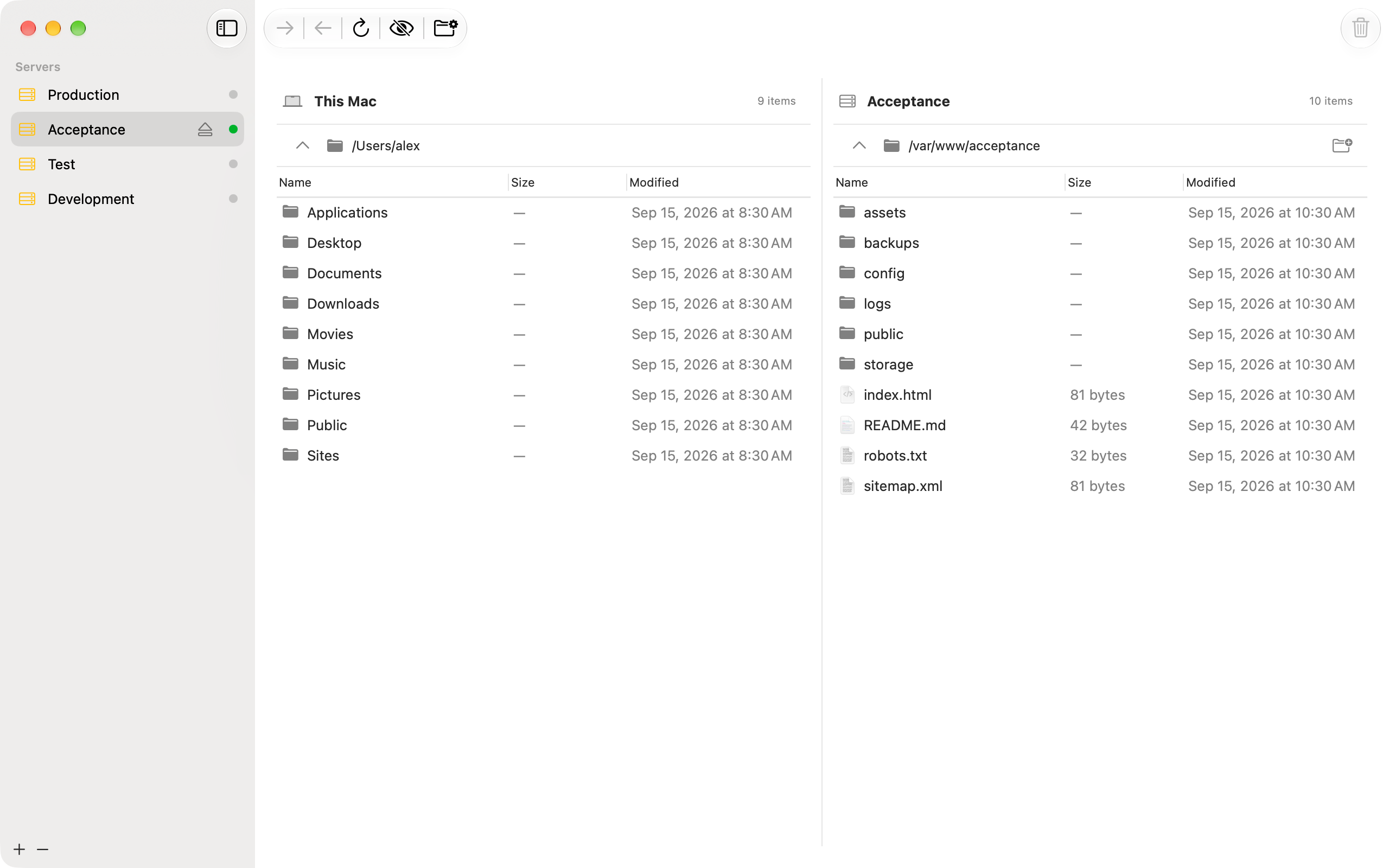
A native FTP client for Mac. LoopFTP lets you upload and download files and folders, browse local and remote files side by side, and keep your server connections organised.
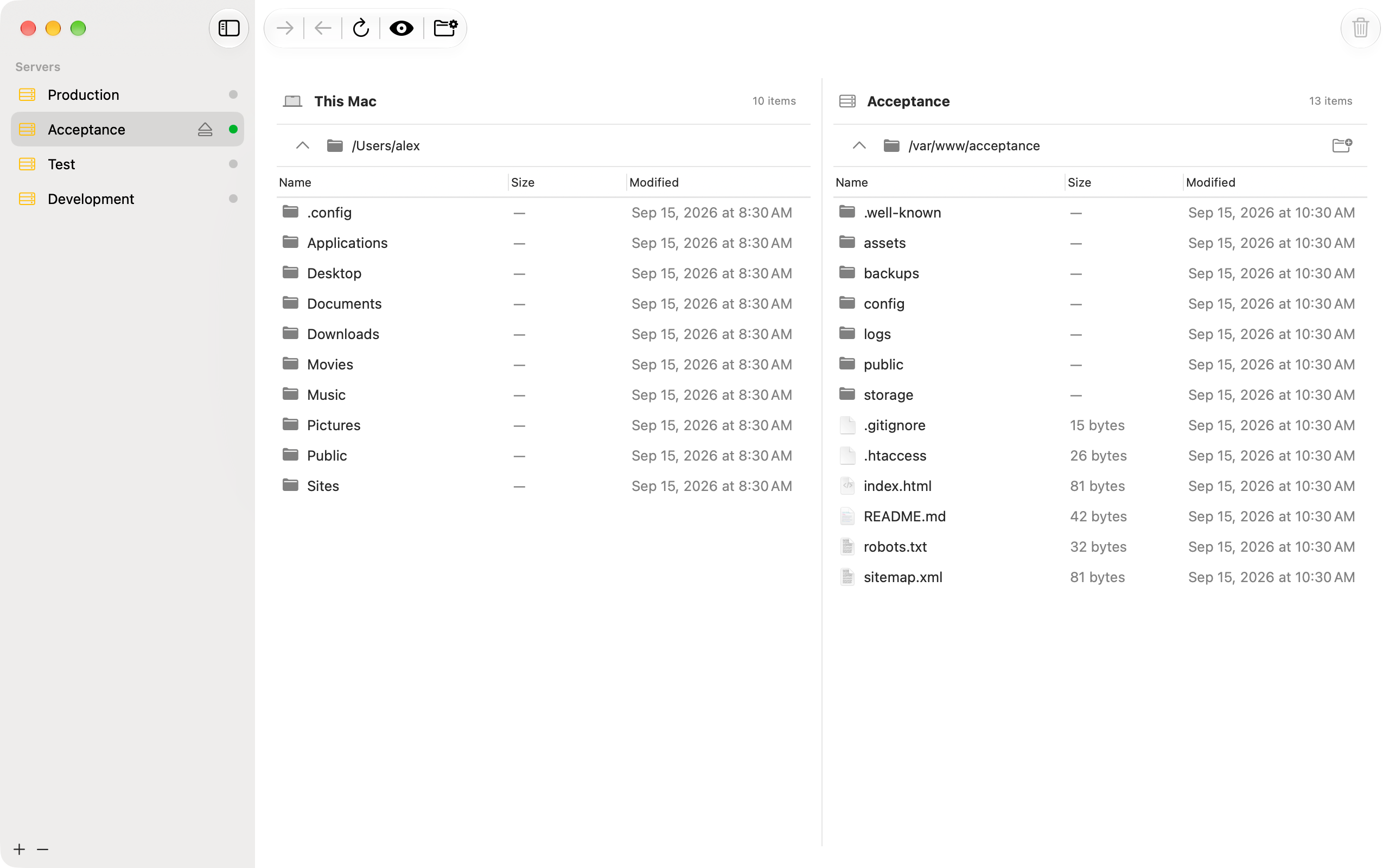
LoopFTP is a native macOS FTP client for people who regularly move files between their Mac and an FTP server. Browse local folders and remote directories in the same window, then drag files across to upload or download them.
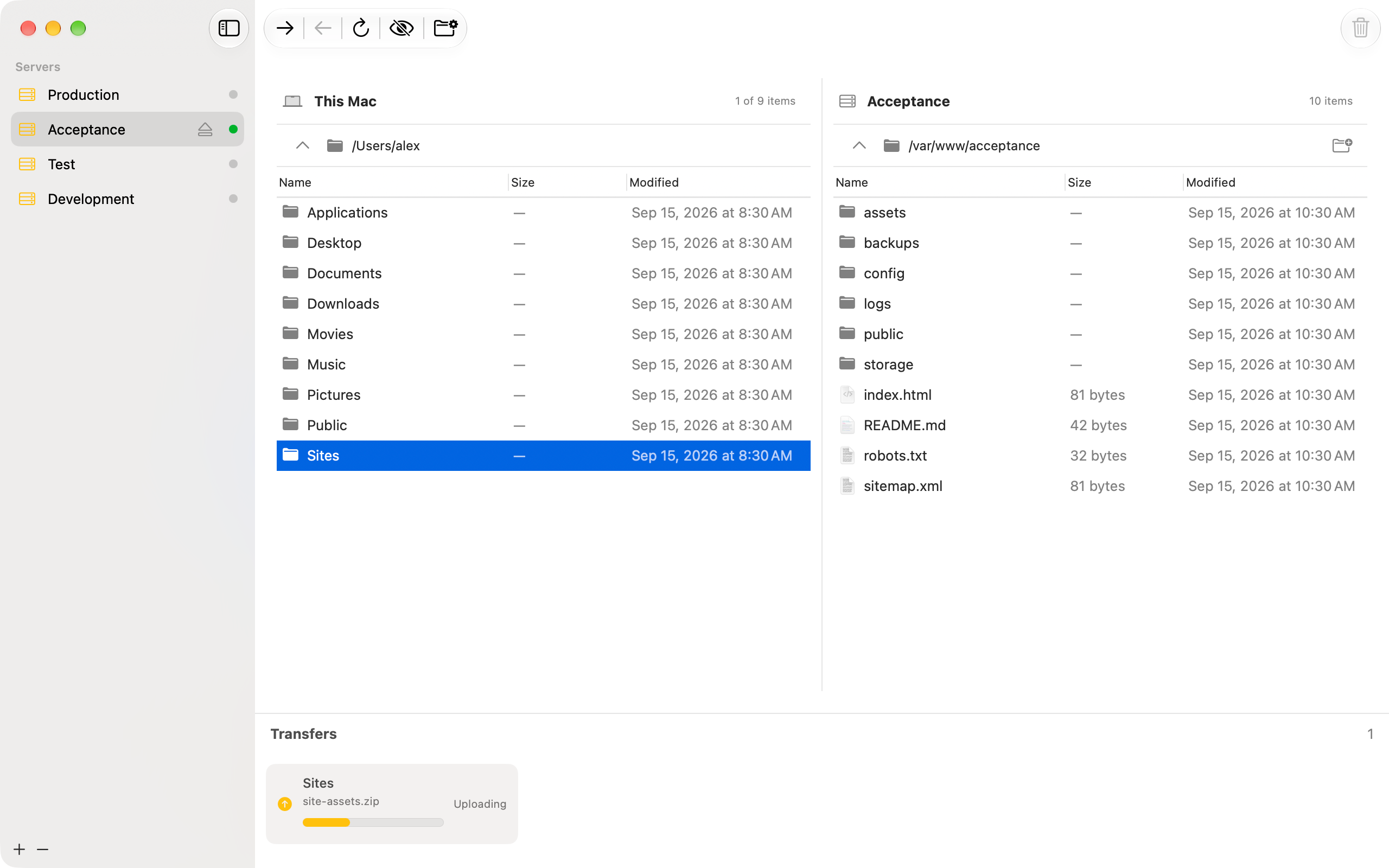
Upload website files, download files from your server or transfer complete folders without switching between separate windows. Follow transfer progress and choose what happens when a destination already contains a file with the same name.
Save server profiles and switch between multiple open connections. LoopFTP keeps connection details together so you can return to a server without entering everything again. Saving a password is optional; saved passwords use the macOS Keychain.
The current version supports FTP with passive and active connections. SFTP and FTPS are not supported. Ordinary FTP does not encrypt credentials or file transfers, so LoopFTP is intended for servers and workflows where FTP is appropriate. It does not provide hosting or server storage.
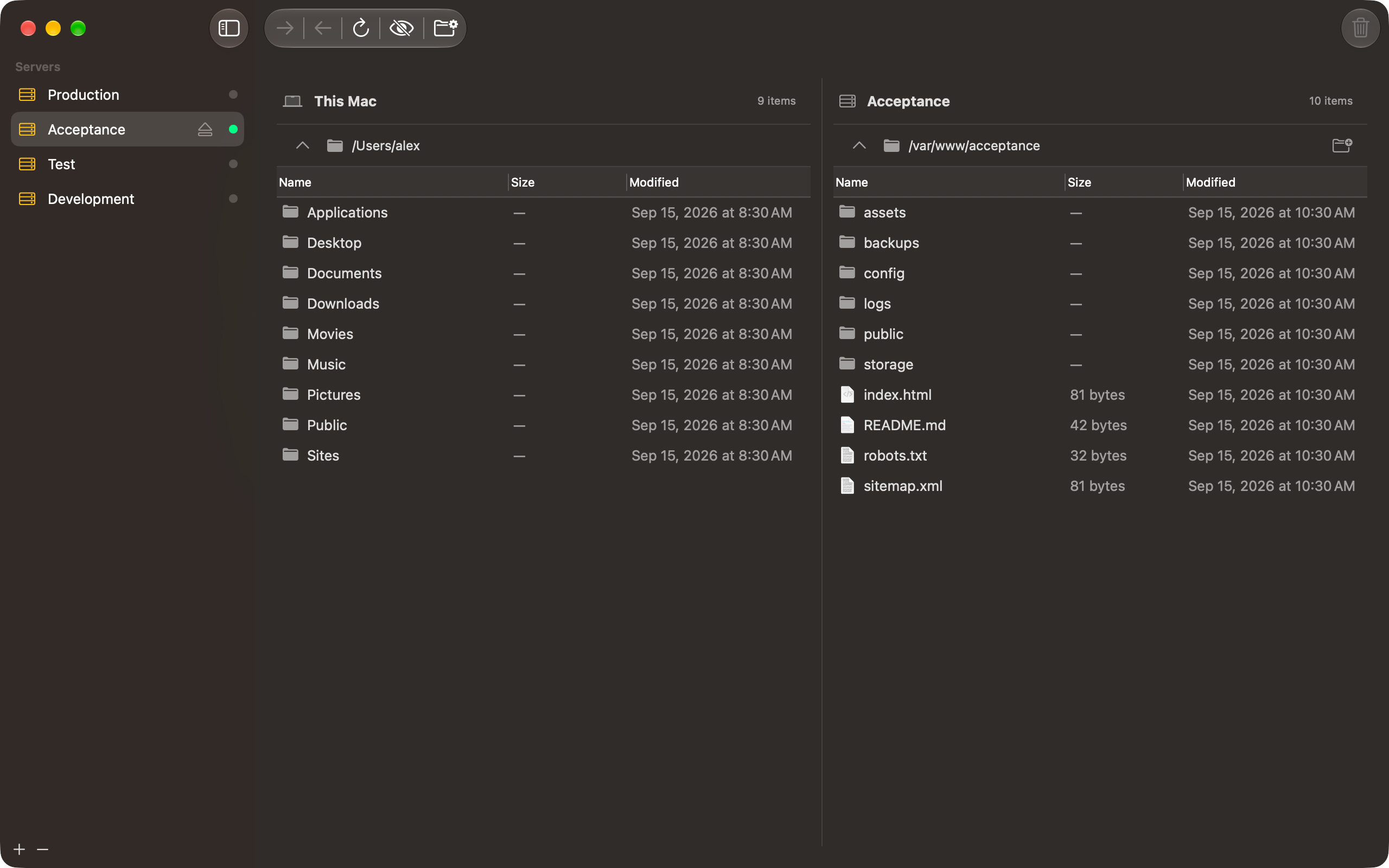
LoopFTP requires macOS 27 or later and a Mac with Apple Silicon. Intel Macs are not supported. The app follows your Mac's light or dark appearance and is available in English, Dutch, German, Spanish, Italian, French and Portuguese.
See LoopFTP setup and connection support for help with your first server, folder access and connection settings. Read the LoopFTP privacy policy for details about local profiles and direct server connections.
For questions or help, email loopftp@murani.nl. Include your macOS version, LoopFTP version and what you were trying to do. Do not send passwords, private keys or confidential files. Remove sensitive information from screenshots and logs.
Add a server with the + button, enter its connection details and choose Connect. Select a local folder using the macOS folder picker, then drag files or folders between the local and remote panes. Use the sidebar to switch between saved servers.
The current version supports FTP, including passive and active data connections. SFTP and FTPS are not included. Ordinary FTP sends login details and file data without transport encryption.
LoopFTP uses the macOS App Sandbox. You choose which local folder it may read and write. Use the folder picker to grant access to another location.
Passwords normally stay in memory while the app is open. If you choose to save one, it is stored in the macOS Keychain, separately from your server profiles.
Check the server address, port, username and password, and whether the server supports FTP. Your server or network may require a particular passive or active mode; this setting is available under More Options in the connection editor.
Last updated: 21 September 2026
This policy describes the LoopFTP app, published by Murani Consultancy BV. For app or privacy questions, contact loopftp@murani.nl.
LoopFTP stores server profiles locally, including their name, server, port, username, starting folders, last connection date and permission to access your chosen local folder. It may also remember a working FTP data-connection mode for a profile.
Passwords stay in memory by default. If you choose to save a password, macOS stores it in Keychain. Passwords are not stored in the server-profile file.
The app reads file names, folder structures, sizes, modification dates and the contents of files you choose to transfer. Access to local folders is granted through the macOS folder picker.
LoopFTP connects directly to the FTP server you specify. Your server username and password are sent to that server for authentication. Relevant file names, paths and file contents are exchanged when you browse or transfer files. The server operator may process your IP address, connection information and transferred files under its own policies.
Ordinary FTP does not encrypt this network traffic. Saving a password in Keychain does not encrypt the FTP connection.
These transfers do not pass through a Murani service. LoopFTP has no advertising, tracking SDK or built-in analytics, and does not send automatic usage reports to Murani.
The app writes technical diagnostics to the local macOS log, such as FTP command names, numeric response codes and timings. The app's diagnostic code does not include command parameters, passwords or file contents. LoopFTP does not automatically send these logs to Murani. macOS may process its own diagnostics according to your Apple settings.
If you contact support, Murani receives your email address and the information you choose to send in order to respond to your request. You can use the contact address above to ask about information you have supplied or request its correction or deletion.
Server profiles remain locally until you delete them. Deleting a profile also attempts to remove its Keychain password; any remaining item can be removed in macOS Keychain Access. Passwords kept only in memory disappear when the app closes.
Downloaded files remain in your chosen local folder. Uploaded files remain on the server until you or its administrator delete them. Removing a profile does not delete transferred files. Local preferences and system logs may remain under macOS storage and logging rules. Murani has no central copy of your server profiles or transferred files.
For data held by your FTP server, contact its administrator.
Monitor Apple Home and HomeKit accessory batteries on iPhone and iPad. LoopJuice brings battery levels, history, widgets and low-battery warnings into one clear overview.
View app
Compile Sass, Less and TypeScript, and optimise CSS and JavaScript on your Mac. LoopPress watches your project files and rebuilds them locally when you save changes.
View app
Turn paper into clean PDFs with automatic edge detection, perspective correction and multiple pages per file. Save to iCloud Drive, organise in folders and share. Free, private and watermark-free.
View app